HELP PAGE
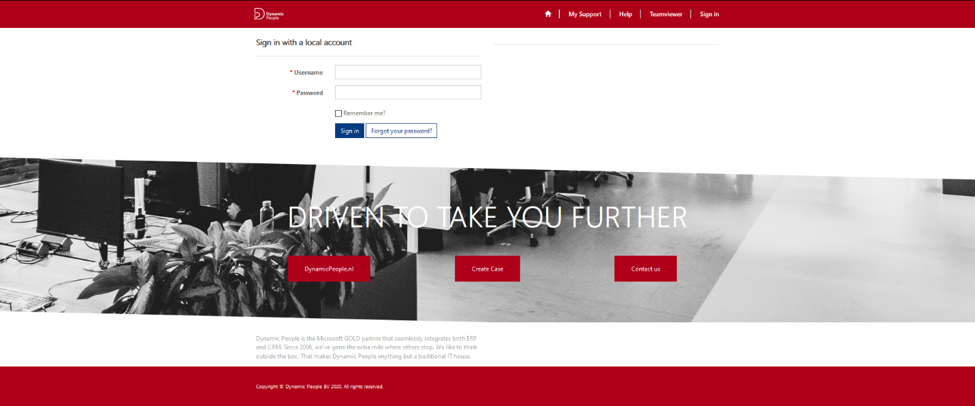
1. Sign in – Sign in via button in top bar, and
enter Username and Password. Then click on My Support.
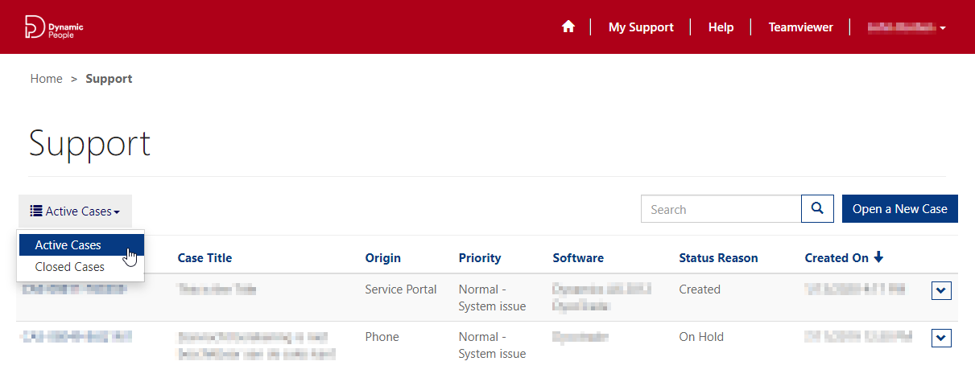
2. Cases overview – Active versus Closed Cases. Use the button on the left side to switch between Active Cases and Closed Cases.
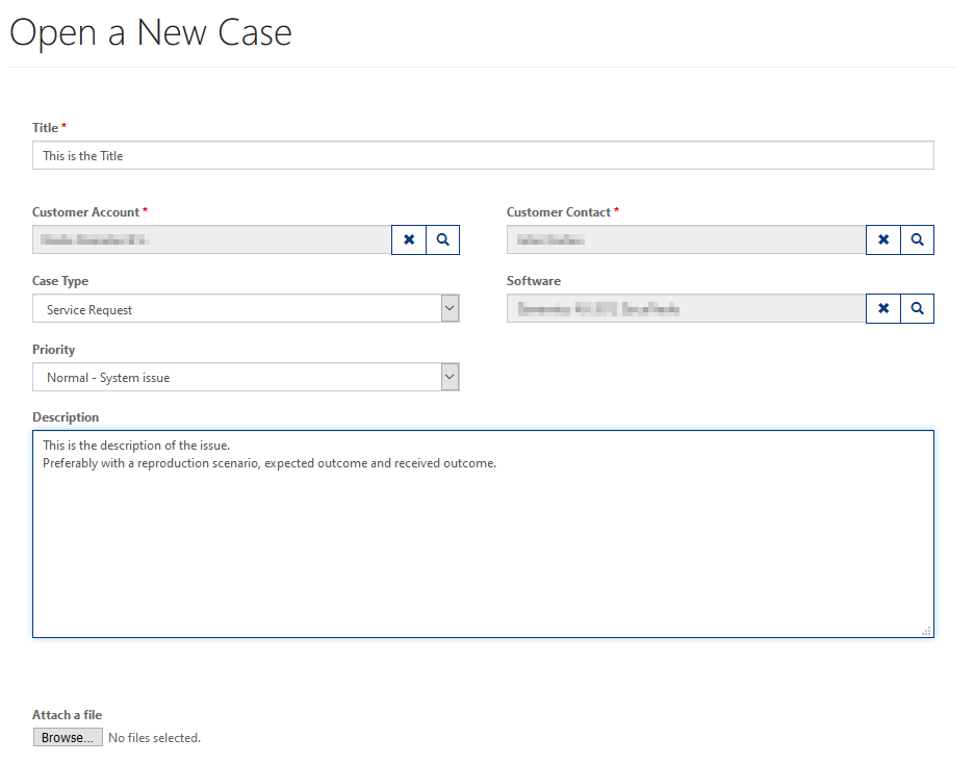
3. Open a New Case – Click on the blue button on the right side to Open a New Case.
- Case Type – select Case Type option: Question, Service Request or Change Request.
- Priority – select Priority option: Low – System non-blocking issue, Normal – System blocking issue or High – System blocking issue, multiple users.
- Software – select Software option, for example Dynamics AX, Dynamics CRM, Atlas, ExFlow, etc.
- Attach a file – If needed click on the button Choose Files to attach for example screenshots to the Case.
4. Submit – Click on the blue button Submit to send the case to Dynamic People Support..
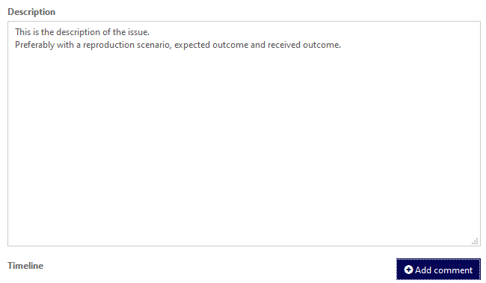
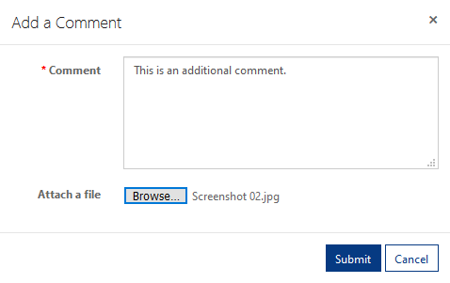
5. Add comment – Click on the button Add comment under the field Description to enter additional comments to an active case.
If needed, also submit attachment to the comment. And click Submit.
6. Reopen case – to reopen a Closed Case click on the Case Number link. All the way at the bottom of the case Timeline click on the button Reopen case to reopen the service request.
However, we prefer you open a new case and refer to the case number of the closed case.